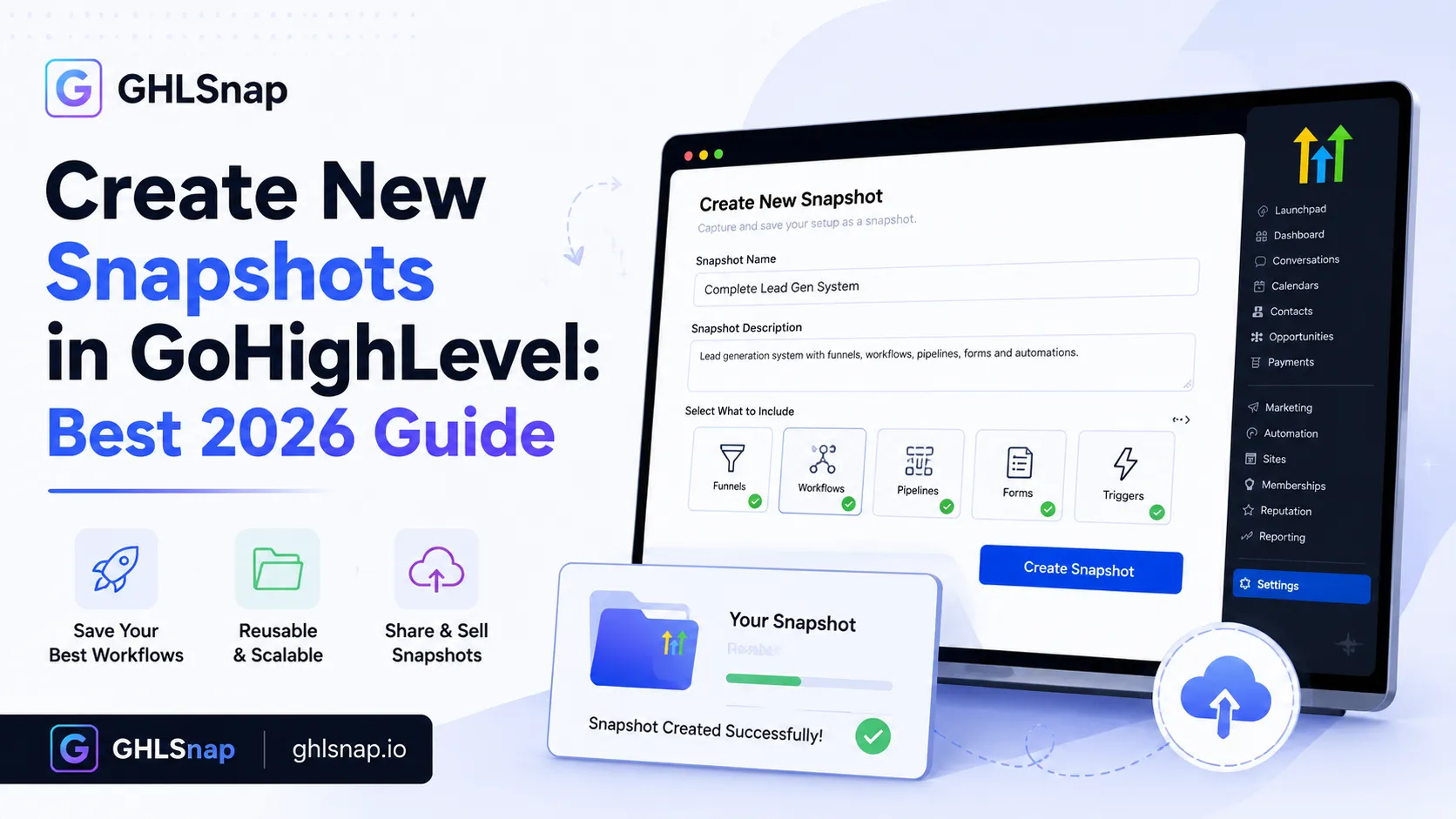
Most agencies rebuild the same system for every client. Same pipeline, same follow up, same reminders, typed out again from scratch. Then somebody shows them how to create new snapshots in GoHighLevel and the job goes from three days to twenty minutes.
A snapshot is a saved copy of the setup inside one sub account. Once you have it, you can drop that entire structure into any other account you own.
This guide shows the exact process, straight from the official HighLevel documentation, plus the practical rules that stop a snapshot from breaking later.
What happens when you create new snapshots in GoHighLevel
The first thing to understand is that you do not build a snapshot directly. You build a sub account properly, then capture it.
The official HighLevel guide to creating snapshots is clear on this point. Snapshots capture sub account configurations, so the quality of your snapshot is decided long before you press the button.
That is good news. It means the work is normal build work, and the snapshot is just the save button at the end.
What is included and what is left behind
Before you create new snapshots in GoHighLevel, know exactly what travels.
Included. Workflows, funnels, calendars, forms, emails, triggers, custom fields, custom values, membership content, services, webinars and AI Studio projects.
Not included. Contacts, appointments, conversations, reputation data, Stripe connections, integrations and LinkedIn Lead Gen Forms.
There is one more detail worth knowing. Associations between CRM objects are included automatically, as long as both objects in the relationship are selected. Contact to contact associations are not supported at all.
So a snapshot is structure, never customers. Anyone who tells you otherwise has not read the documentation.
How to create new snapshots in GoHighLevel step by step
Step 1: Open Account Snapshots from Agency View
Switch to Agency View, go to Account Snapshots, and click Create New Snapshot in the top right corner.
If you cannot see Agency View, you are inside a sub account. Snapshots are created at agency level only.
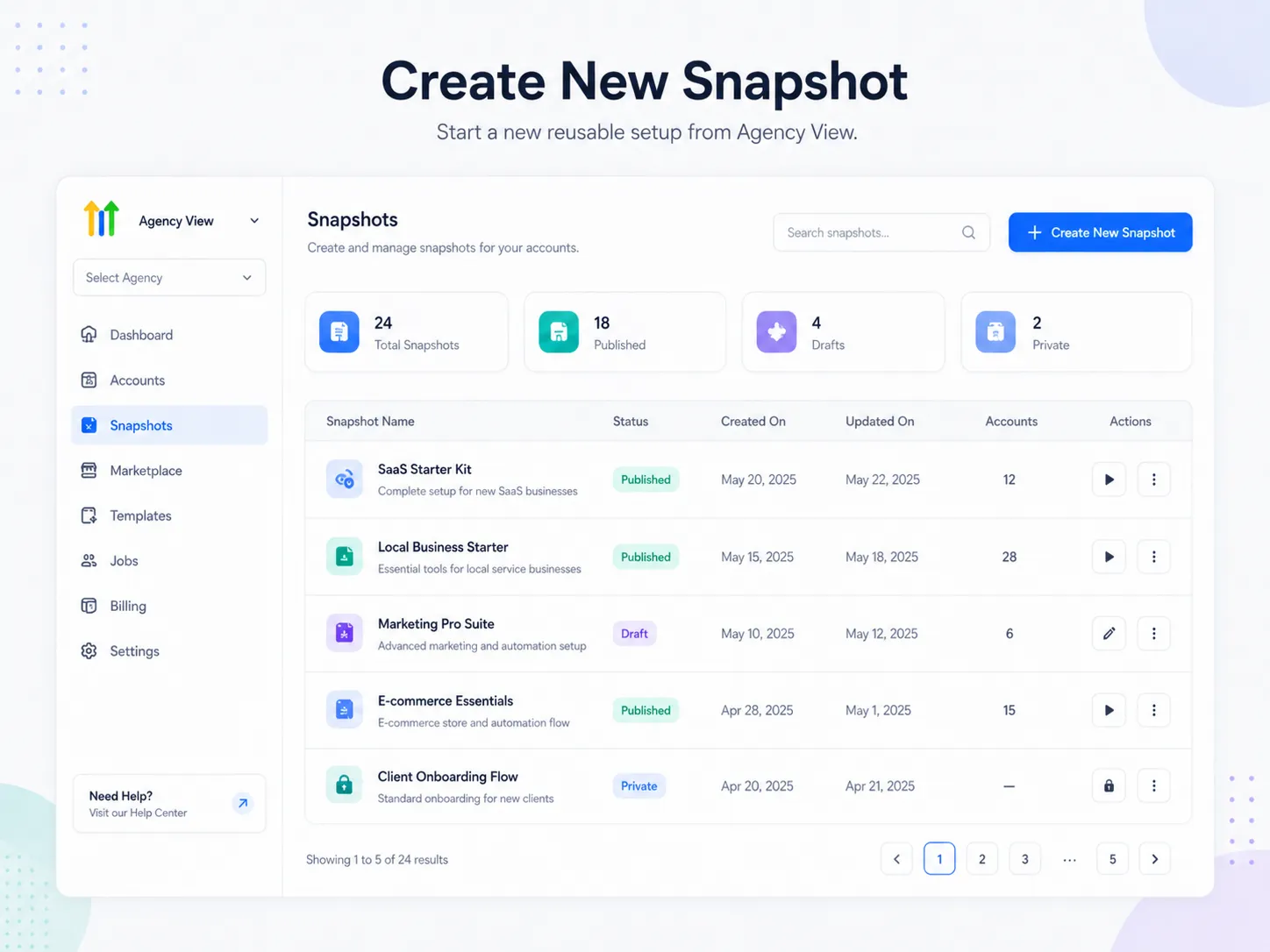
Step 2: Name it and pick the source account
Give it a name that describes the use case rather than the date. The official documentation uses an example like Spa Funnel Setup, and that is exactly the right style.
Then select the sub account that holds the assets you want to capture.
Naming matters more than people expect. In twelve months you will have twenty snapshots, and Snapshot Final Final 2 tells you nothing.
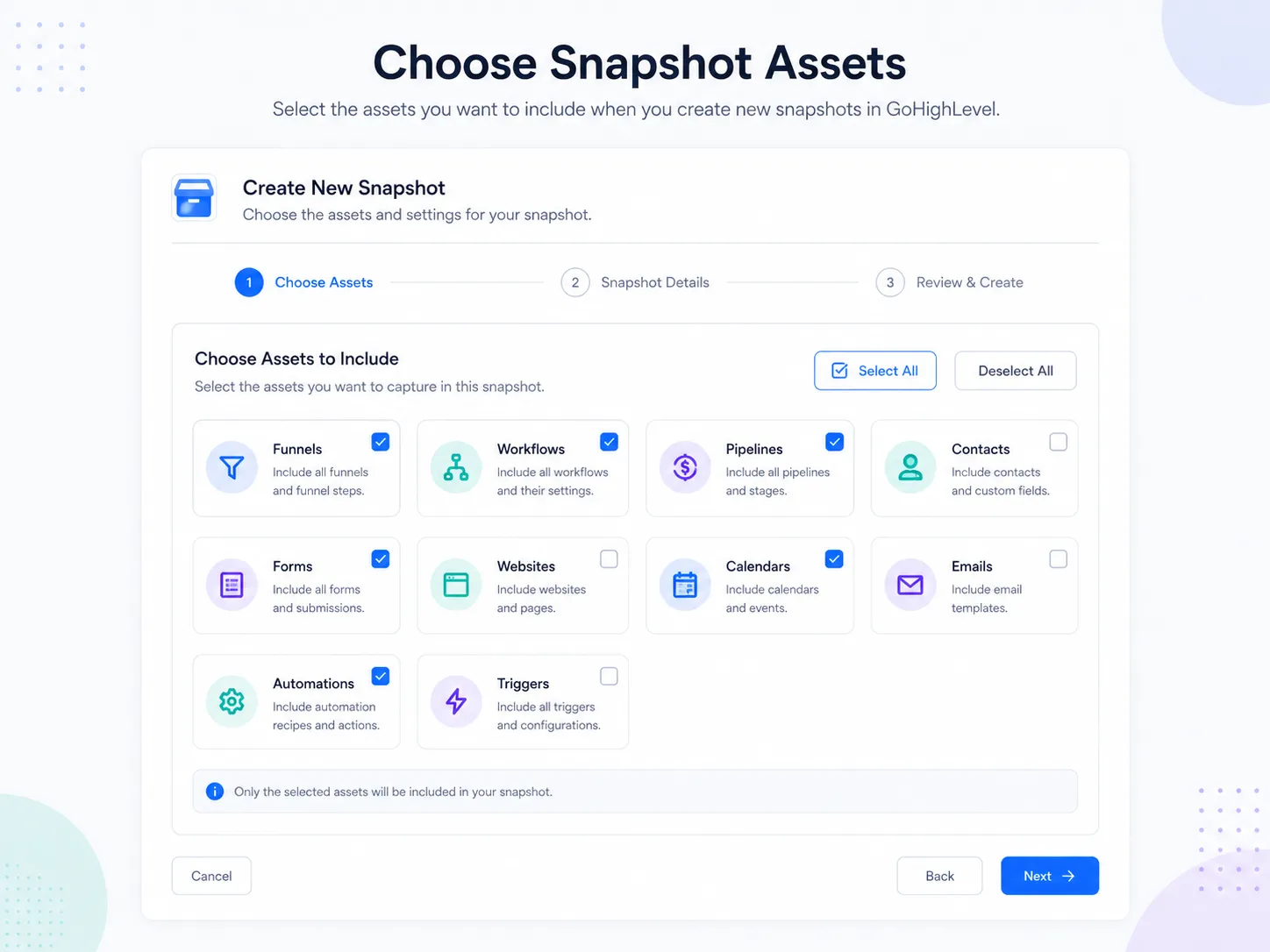
Step 3: Choose the assets
You now see the full asset list from that sub account. You can select everything at once, or expand each category and handpick items.
Handpicking is usually better. A snapshot full of half finished test funnels is a snapshot nobody wants to import.
Step 4: Click Create
That is it. HighLevel builds the snapshot and it becomes reusable across as many sub accounts as you like.
If some assets fail to load during the process, a Retry option appears so you can reattempt without starting the whole thing again.
Prepare the sub account before you create new snapshots in GoHighLevel
Before you create new snapshots in GoHighLevel, tidy the source account. This is the difference between a snapshot you are proud of and one you quietly stop using.
Run this checklist inside the source sub account first.
- Every workflow has a clear name, not Copy of Copy of Workflow 3
- No test contacts, no personal phone numbers and no client data anywhere
- Every email and text uses custom values instead of one business name typed by hand
- Custom fields are named in plain language, because the buyer or the next client will read them
- Pipeline stages match how a real team speaks
- Old test funnels are deleted rather than left switched off
Ten minutes of tidying here saves an hour on every future import.
Custom values are the secret
If you learn one thing about how to create new snapshots in GoHighLevel, learn this.
A custom value is a placeholder you set once per account, such as business name, booking link, office phone or main offer. Every email, text and page then pulls from that placeholder.
Build your snapshot this way and a new client setup becomes filling in a short form. Build it with the business name typed into forty places and every new client becomes a search and replace job.
This single habit is what separates agencies that onboard in a day from agencies that take a week.
How to share a snapshot once you create it
The official snapshots overview lists the share link types available. You can generate reusable links, one time links, email links, agency restricted links, sub account restricted links and marketplace links.
Pick deliberately. A reusable link is convenient and easy to pass around, which also means it can travel further than you intended. A one time link is the safer choice when you are sending a paid product to a single buyer.
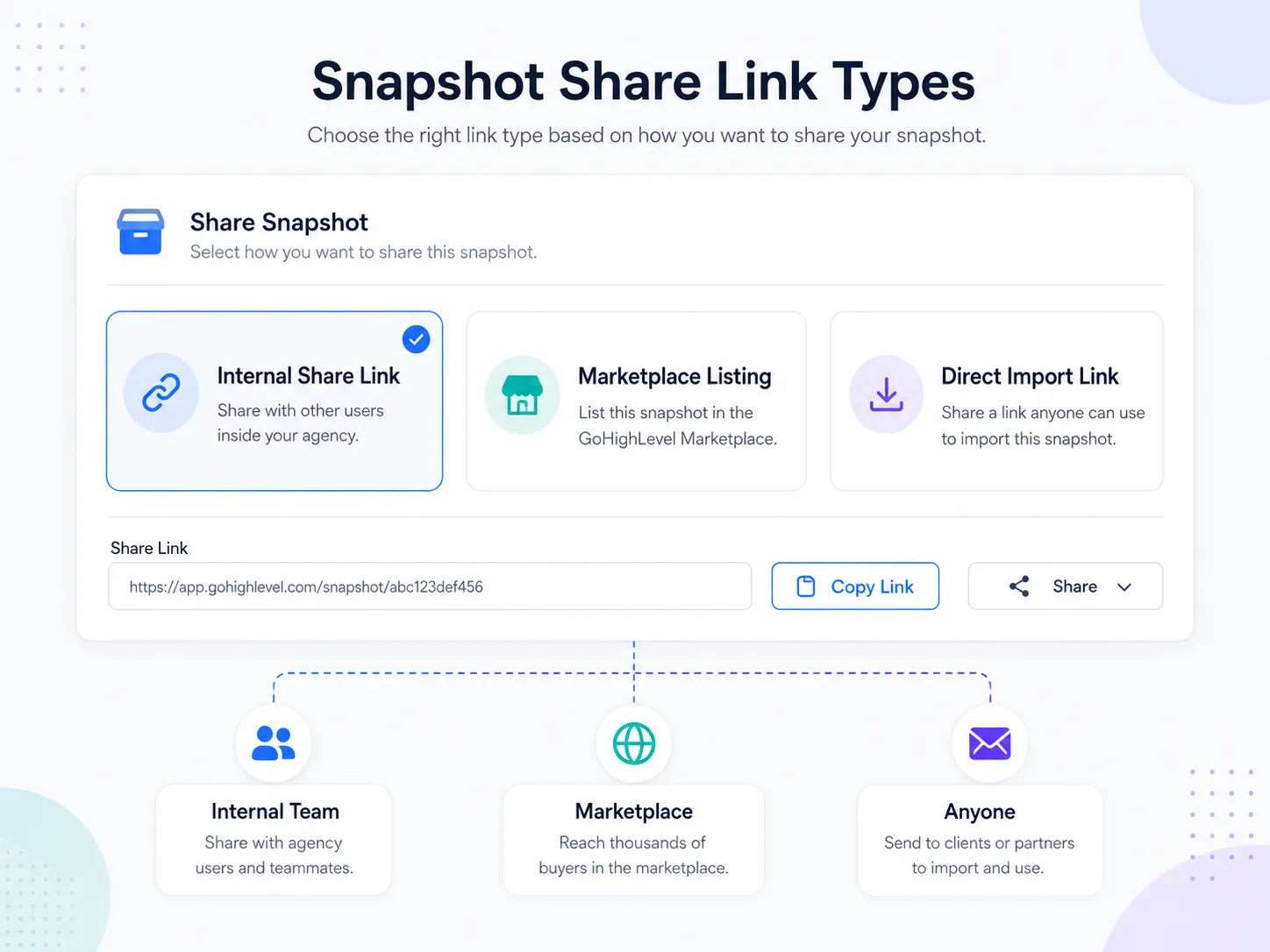
If you plan to sell, the marketplace route adds IP protection and puts you in front of agencies who are already looking. Our guide on selling snapshots on the app marketplace covers that process in full.
Loading a snapshot into an account
Once you create new snapshots in GoHighLevel there are two ways to use them.
You can create a brand new sub account and apply the snapshot during setup, which is the cleanest option and the one to use for new clients.
Or you can load it into an existing account. In that case you choose which assets to import, review conflicts, and decide whether to override or skip anything that clashes.
That override choice is where accidents happen. Always test in an empty sub account before you load a snapshot into an account a client is already using.
Updating a snapshot without breaking client accounts
Snapshots are not live links. When you create new snapshots in GoHighLevel, improving one later does not change the accounts that already imported the old version.
So keep a simple change log. One line per change and the date. When you push an updated snapshot to an existing client, you then know exactly which workflows to check afterwards rather than testing all forty.
Version your names too. Roofing System v3 is far more useful than Roofing System New.
How many snapshots should an agency keep?
Fewer than you think.
New agencies often end up with fifteen snapshots inside a year, one per client, because capturing feels free. Then a platform update breaks a workflow and there are fifteen files to fix instead of three.
A better structure is one base snapshot plus a few niche versions. The base holds everything every client needs, such as missed call text back, appointment reminders, review requests and a simple pipeline. The niche versions add only what that trade needs on top.
Three to five well maintained snapshots will serve almost any agency. If you find yourself with more than that, most of them are probably the same system with a different logo, and merging them will save you real hours every time HighLevel ships an update.
Set a date once a quarter to review the library. Import each one into a clean empty sub account, run a test lead through it, and fix anything that broke. That single hour keeps every future client onboarding smooth.
Common mistakes when you create new snapshots in GoHighLevel
- Capturing a live client account, which drags their naming and their quirks into every future build
- Selecting every asset without looking, including abandoned test funnels
- Forgetting that integrations and Stripe connections do not travel, then wondering why payments fail
- Expecting contacts to come across
- Sharing a reusable link for a paid product
- Never testing the snapshot in a clean empty account before handing it over
That last one is the big one. Importing into a fresh account is the only reliable way to find the things that only worked because they lived in your original account.
A simple routine for creating new snapshots in GoHighLevel
Build one excellent sub account for your best niche. Tidy it. Replace every hard coded detail with a custom value. Capture it as a snapshot. Import it into a clean empty account and fix whatever breaks. Only then use it on a client.
Repeat that once per niche and within a few months you have a small library that turns onboarding into an afternoon.
Your next step
Open Agency View and look at your best performing sub account. If you can honestly say every workflow is named clearly and every message uses custom values, you are ready to create new snapshots in GoHighLevel today.
If not, spend an hour tidying first. It is the highest paid hour in this whole process. And if you would rather start from a tested base than build from scratch, browse our GoHighLevel snapshots or read our guide to the best GoHighLevel snapshots for your trade.